First, update every device
Many problems go away when every device runs the latest build. Open TestFlight on each iPhone, iPad and Mac you use and install any update. An older build stops sending changes until it's updated, and says Update Thermocline to keep syncing. Your changes are kept and send after updating.
Downloads from a dive computer
The computer isn't found
- Wake the computer and put it in its Bluetooth mode (Shearwater: Menu → Bluetooth). It only stays there about two minutes.
- Hold it close to the iPhone, iPad or Mac.
- Shearwater computers go back to the last device they used. If your phone or another Mac is nearby, turn Bluetooth off on that device, then try again.
- Check Bluetooth is on, and that Thermocline is allowed to use it (iPhone: Settings → Thermocline; Mac: System Settings → Privacy & Security → Bluetooth).
It's a Predator or Petrel 1 and the iPhone can't see it
These use older Bluetooth (Bluetooth Classic) that iPhones and iPads can't use. Download them on the Mac (see the guide), or import their dives from Shearwater Cloud or a UDDF file.
It connects but asks for a PIN
Type the code shown on the computer's screen. It's only needed the first time.
"No new dives"
Only dives newer than your last download are fetched. If you deleted a dive and want it back, turn on Download every dive on the computer and download again. Dives already in your logbook are skipped.
The download stopped part way
Choose Keep to save the dives that arrived, then download again for the rest. If it keeps stopping, choose Try again close to the computer, and send the download log.
A cable download fails on the Mac
- Check the port matches the cable: the list says which kind each port is, and warns when it's not for the model you chose.
- Unplug and replug the cable, then use the refresh button to look for cables again.
- Follow the Before you start steps for your model.
- Cable downloads are new. Please send the download log either way.
Sync between devices
Dives are missing or doubled after a sync
- Don't change anything yet. Take a screenshot of the Sync section (iPhone: Profile → Sync; Mac: Thermocline → Settings → Sync) on each device and send it.
- Check every device is on the latest build.
- Profile → Your data → Restore points can take your logbook back to before an import, merge or deletion. Restoring saves your current logbook first, so it can be undone.
A change on one device doesn't show on the other
- Check Sync with iCloud is on on both, signed in to the same Apple Account.
- Look at Waiting to send on the device where you made the change, and open the app on both with a signal. The Sync section says when this device and your others match.
- Press Sync now.
"Not signed in to iCloud"
Sign in to iCloud in the device's Settings. Until then your logbook stays on that device, safe, and syncs once you're signed in.
"Your iCloud storage is full"
Your logbook is safe on the device and syncs when there's room. Free some iCloud space, or turn on Save iCloud storage on dive photos so photos aren't stored twice.
"Another device uses a newer version"
Update Thermocline on this device in TestFlight. Your changes are safe here and send after updating.
Imports
Some dives or details didn't come in
The import report lists everything under Not imported and Please check, with the reason. Every logbook writes UDDF a little differently, so missing values are normal and stay blank. If something you expected is missing, send the report and, if you can, the file.
My MacDive gear, photos or dive types are missing
MacDive's UDDF export leaves those out. On the Mac, use File → Import from MacDive… and choose MacDive's folder to bring them across.
Imported dives have no gas
The file didn't say which gas was used. Those dives wait in To confirm so you can set it.
I imported the wrong file
On the Mac, use Undo Import… in the import report. On either device, a restore point named Before an import is saved before any import of more than one dive.
Gas use and SAC
A SAC figure looks wrong
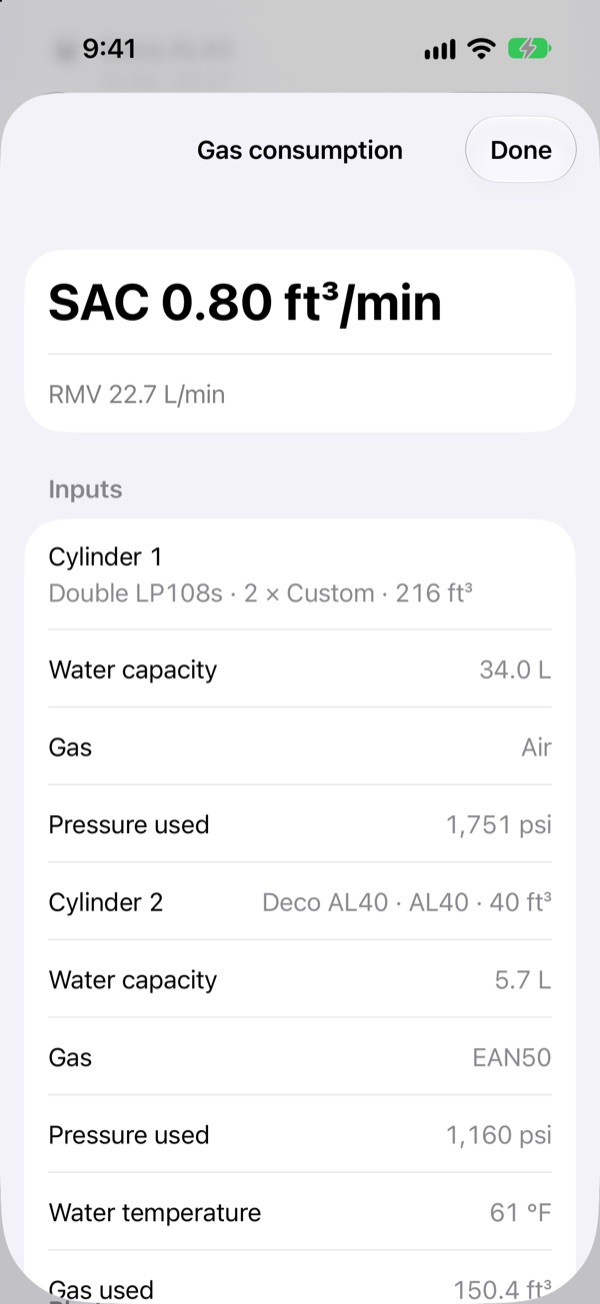
Tap or click How? next to it. It shows every input: the cylinder and its water capacity, pressures, temperature, the real-gas correction, time and depth. The usual culprit is a wrong cylinder size; fix it in Gear. Send a screenshot of the How? screen if it still looks off.
There's no SAC, only a message
- Add the cylinder size to see SAC: choose the tank's model or enter its size.
- Add start and end pressures to see SAC: there's no transmitter, so enter them on the tank.
- SAC needs a depth profile: dives logged by hand without a profile have no SAC.
- Rebreather dives don't get a SAC figure.
SAC only counts one tank
On a dive with several gases, only the tank with the transmitter has pressures. Enter start and end pressures on the other tank and SAC covers all the gas.
Photos
A photo doesn't show on my other device
With Save iCloud storage on dive photos on, a photo keeps its copy until your other device finds it in iCloud Photos. Turn the setting on on both devices, check iCloud Photos is on for both, and give it time to upload.
Videos weren't added
Videos from your library can only be linked, not copied. Turn on Sync → Save iCloud storage on dive photos, and make sure the video is in iCloud Photos. Or paste a YouTube or Vimeo link under the dive's photos.
"Thermocline can't read your photos"
Photos access was refused, so photos are copied instead of linked. To link them, allow access in Settings → Privacy & Security → Photos → Thermocline.
Sites and the Apple Watch
The suggested site is wrong, or there isn't one
Choose a different site, search the built-in lists by name, or mark or type the position yourself. Inland quarries and lakes are often missing from public lists, so your own sites come first in suggestions from then on.
A spot marked on the Watch didn't appear
The watch sends it to your iPhone (its list shows Sent to iPhone or Waiting to send). Open Thermocline on the iPhone; the spot is looked up when you're online and appears in To confirm. The watch needs Location Services on for Thermocline.
Send a report or a download log
- From the app: take a screenshot, then use Share Beta Feedback in TestFlight. It arrives with the build and device attached.
- Download log, iPhone: on the download screen, tap Download log, then share it. It lists Bluetooth and computer messages only, with no dive data.
- Download log, Mac: in the download window, choose Download Log…, then Save Log…, and attach the file.
- Email: support@thermoclineapp.com, with your device, the build number (shown in TestFlight) and what you expected to happen.